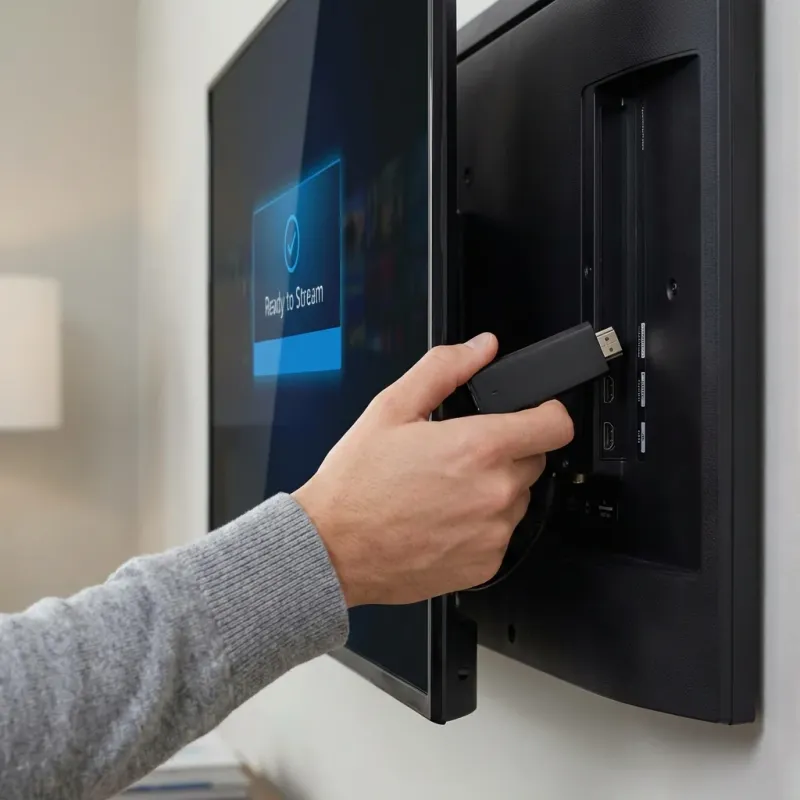
Setting Up IPTV is Easy
Setting up IPTV on your devices is simpler than you might think. Whether you're tech-savvy or a complete beginner, our step-by-step guides will have you streaming in minutes. All you need is: • Your IPTV subscription (login credentials or M3U URL) • A compatible device • Stable internet connection (15+ Mbps for HD, 25+ Mbps for 4K) Choose your device below to get started.
Choose Your Device
Amazon Firestick Popular
Most popular choice. Works with all Fire TV devices including Fire TV Stick 4K and Fire TV Cube.
Smart TV
Setup for Samsung, LG, Sony, and other Smart TVs. No additional devices needed.
Android Phone/Tablet
Watch on Android phones, tablets, and Android TV boxes.
iPhone & iPad
iOS setup using GSE Smart IPTV, IPTVX, or IPTV Smarters.
Apple TV
Premium 4K experience on Apple TV 4K and Apple TV HD.
Windows PC
Watch on Windows using VLC, IPTV Smarters, or web browser.
Mac
Setup for macOS using IINA, VLC, or browser-based players.
Roku
Setup for Roku devices using M3U playlists and Roku channels.
You're Minutes Away from 16,000+ Channels
No satellite dish, no cable guy, no messy installation. Just download and play.
Get Your Login DetailsUniversal Quick Start (All Devices)
These steps work for most devices and IPTV apps:
Download an IPTV App
Install one of these apps on your device: IPTV Smarters Pro (recommended), TiviMate (advanced), or VLC Media Player (free).
Get Your Login Details
After purchasing, you'll receive an email with your username, password, and server URL - or an M3U playlist link.
Enter Your Credentials
Open the IPTV app and select 'Xtream Codes API' or 'M3U URL'. Enter the details from your email.
Start Watching
Browse channels, explore VOD, and enjoy! Channels are organized by category for easy navigation.
Device-Specific Setup Instructions
Amazon Firestick Setup
Most popular choice. Works with all Fire TV devices including Fire TV Stick 4K and Fire TV Cube.
Quick Setup Steps:
- 1. Go to Settings → My Fire TV → Developer Options → Enable 'Apps from Unknown Sources'
- 2. Install the app and open it
- 3. Select "Xtream Codes API" or "Add Playlist"
- 4. Enter your LUNOTV credentials (username, password, server URL) from your welcome email
- 5. Start watching! Channels are organized by category.
Smart TV Setup
Setup for Samsung, LG, Sony, and other Smart TVs. No additional devices needed.
Quick Setup Steps:
- 1. Open your TV's app store and search for 'IPTV Smarters' or 'Smart IPTV'
- 2. Install the app and open it
- 3. Select "Xtream Codes API" or "Add Playlist"
- 4. Enter your LUNOTV credentials (username, password, server URL) from your welcome email
- 5. Start watching! Channels are organized by category.
Android Phone/Tablet Setup
Watch on Android phones, tablets, and Android TV boxes.
Quick Setup Steps:
- 1. Open Google Play Store and search for 'IPTV Smarters Pro'
- 2. Install the app and open it
- 3. Select "Xtream Codes API" or "Add Playlist"
- 4. Enter your LUNOTV credentials (username, password, server URL) from your welcome email
- 5. Start watching! Channels are organized by category.
iPhone & iPad Setup
iOS setup using GSE Smart IPTV, IPTVX, or IPTV Smarters.
Quick Setup Steps:
- 1. Open App Store and search for 'GSE Smart IPTV' or 'IPTV Smarters'
- 2. Install the app and open it
- 3. Select "Xtream Codes API" or "Add Playlist"
- 4. Enter your LUNOTV credentials (username, password, server URL) from your welcome email
- 5. Start watching! Channels are organized by category.
Apple TV Setup
Premium 4K experience on Apple TV 4K and Apple TV HD.
Quick Setup Steps:
- 1. Open App Store on your Apple TV and search for 'GSE Smart IPTV'
- 2. Install the app and open it
- 3. Select "Xtream Codes API" or "Add Playlist"
- 4. Enter your LUNOTV credentials (username, password, server URL) from your welcome email
- 5. Start watching! Channels are organized by category.
Windows PC Setup
Watch on Windows using VLC, IPTV Smarters, or web browser.
Quick Setup Steps:
- 1. Download VLC Media Player from videolan.org or IPTV Smarters from the official website
- 2. Install the app and open it
- 3. Select "Xtream Codes API" or "Add Playlist"
- 4. Enter your LUNOTV credentials (username, password, server URL) from your welcome email
- 5. Start watching! Channels are organized by category.
Mac Setup
Setup for macOS using IINA, VLC, or browser-based players.
Quick Setup Steps:
- 1. Download VLC or IINA from their official websites
- 2. Install the app and open it
- 3. Select "Xtream Codes API" or "Add Playlist"
- 4. Enter your LUNOTV credentials (username, password, server URL) from your welcome email
- 5. Start watching! Channels are organized by category.
Roku Setup
Setup for Roku devices using M3U playlists and Roku channels.
Quick Setup Steps:
- 1. Go to Channel Store → Search 'M3U Playlist' → Add Channel
- 2. Install the app and open it
- 3. Select "Xtream Codes API" or "Add Playlist"
- 4. Enter your LUNOTV credentials (username, password, server URL) from your welcome email
- 5. Start watching! Channels are organized by category.
Recommended IPTV Apps
IPTV Smarters Pro
✓ Pros
- • Easy to use
- • Free version available
- • Multi-device sync
- • EPG support
✗ Cons
- • Ads in free version
TiviMate
✓ Pros
- • Best interface
- • Multi-view
- • Recording
- • Catch-up TV
✗ Cons
- • Premium required for full features
- • Android only
VLC Media Player
✓ Pros
- • Completely free
- • Open source
- • No ads
- • Plays everything
✗ Cons
- • Basic interface
- • No EPG
GSE Smart IPTV
✓ Pros
- • Native iOS/tvOS app
- • Good interface
- • EPG support
✗ Cons
- • Paid app
Quick Troubleshooting
❓ Channels not loading
💡 Solution: Check your internet connection, then verify your login credentials are correct. Try restarting the app.
❓ Buffering issues
💡 Solution: Use a wired connection if possible. Try a VPN to bypass ISP throttling. Lower video quality in settings.
❓ No EPG/TV Guide
💡 Solution: In your app settings, refresh EPG data. Some apps require manually enabling EPG.
❓ App crashes
💡 Solution: Clear app cache and data. Reinstall the app. Ensure your device firmware is updated.
Need Help?
Our 24/7 VIP support team can help you set up IPTV on any device. Contact us via WhatsApp or Telegram for instant assistance.
Setup FAQ
Which IPTV app is best for my device?
For Firestick and Android: TiviMate (premium) or IPTV Smarters (free). For iOS/Apple TV: GSE Smart IPTV. For PC: VLC (free) or IPTV Smarters. Our support team can recommend the best app for your specific device.
Do I need to jailbreak my Firestick?
No jailbreaking required! You simply need to enable 'Apps from Unknown Sources' in settings, which allows you to install apps not in the Amazon store. It's quick, safe, and easily reversible.
Why do some channels have different quality?
Channel quality depends on the source broadcast. Most channels are HD (1080p), with premium channels in 4K. SD channels are typically from older or international sources.
Can I use the same subscription on multiple devices?
Based on your plan, you can use 1-4 devices simultaneously. You can install the app on unlimited devices, but only your plan's number of screens can stream at once.
Streaming Devices & App Stores
Get the popular Fire TV Stick 4K from Amazon Fire TV. Download IPTV apps for Android from the Google Play Store. For premium 4K streaming, consider Apple TV.