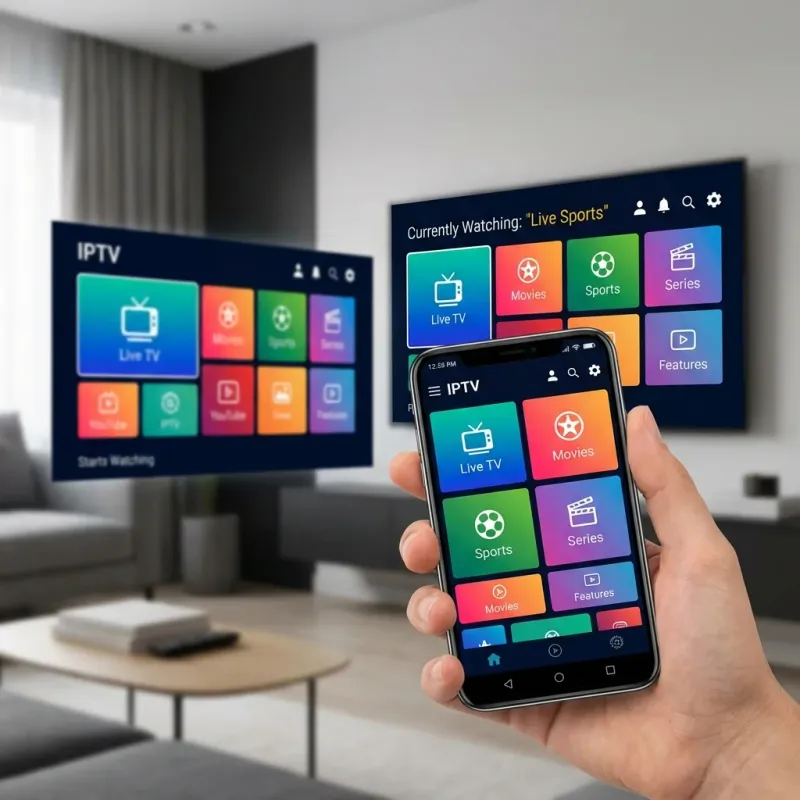
IPTV on Android: The Simplest Setup
Android offers the easiest IPTV setup of any platform. All the best apps are available directly from the Google Play Store - no sideloading, no technical skills required. Works on: • Android phones (Samsung, Pixel, OnePlus, Xiaomi, etc.) • Android tablets • Android TV boxes (Nvidia Shield, X96, T95, etc.) • Any device running Android 5.0 or higher Setup time: **3 minutes** or less.
Recommended IPTV Apps for Android
IPTV Smarters Pro
Best for Beginners
- Easy setup wizard
- Support for Xtream Codes API
- Built-in EPG (TV Guide)
- Multi-screen support
- Parental controls
- Favorite channels list
TiviMate
Best Overall Experience
- Beautiful interface
- Multi-view (watch 4 channels)
- Recording capability
- Catch-up TV support
- Picture-in-picture mode
- Multiple playlist support
VLC Media Player
Best Free Option
- 100% free, no ads
- Open source
- Plays any video format
- Basic M3U support
- No EPG (TV Guide)
OTT Navigator
Best Free Full-Featured
- Completely free
- Supports Xtream Codes
- EPG support
- Recording
- Multiple providers
Setup Guide: IPTV Smarters Pro
The most popular choice for Android users. Takes just 3 minutes.
Download the App
Open the Google Play Store and search for IPTV Smarters Pro
Make sure to download the official app by WHMCS SMARTERS. It has 10M+ downloads.
Install & Open
Tap Install and wait for download. Open the app when complete.
Accept any permission prompts (storage is needed for EPG data).
Add Your Playlist
Tap Add User on the home screen, then select Login with Xtream Codes API
This is the recommended method for the best experience.
Enter Credentials
Fill in the following from your LUNOTV welcome email:
- Any Name: LUNOTV (or anything you want)
- Username: Your IPTV username
- Password: Your IPTV password
- URL: Your server URL (starts with http://)
Start Watching!
Tap Add User and your channels will load.
Browse by category: Live TV, Movies, Series, or use Search to find specific channels.
Setup Guide: TiviMate (Premium Experience)
Best-in-class interface with advanced features. Worth the small annual fee.
Download TiviMate
Search TiviMate IPTV Player in Google Play Store and install
Add Playlist
Open TiviMate, tap Add Playlist > Xtream Codes Login
TiviMate also supports M3U URL if preferred.
Enter Details
Input your server URL, username, and password from your welcome email
Load Channels
Tap Next and wait for channels to load (30-60 seconds)
Unlock Premium (Optional)
For multi-view, recording, and no ads - get TiviMate Companion from Play Store ($4.99/year)
Free version works great, but premium is worth it for serious users.
Android TV Box Specific Tips
Using a TV box like Nvidia Shield, X96, or generic Android box? Here are some extra tips:
Use a Remote-Friendly App
TiviMate is designed for remotes. IPTV Smarters also works well. Avoid apps designed for touchscreens.
Use Ethernet Connection
All Android TV boxes have Ethernet ports. Use them! Wired connection eliminates 99% of buffering issues.
Get Enough Storage
If you plan to record, get a box with 32GB+ storage or connect an external drive.
Nvidia Shield is the Best
If you're serious about IPTV, the Nvidia Shield TV Pro is the ultimate Android TV box. Premium price but unmatched performance.
Common Issues & Fixes
❓ App says 'Authentication Failed'
✅ Double-check your username and password. Make sure the server URL includes http:// or https:// at the beginning. No trailing slashes.
❓ Channels load but won't play
✅ Try changing the player in Settings. Go to Settings > Player > try VLC, ExoPlayer, or Android system player.
❓ EPG (TV Guide) not showing
✅ In IPTV Smarters: Settings > Refresh EPG. In TiviMate: Settings > EPG > Update. First load can take a few minutes.
❓ App crashes on launch
✅ Clear app data: Android Settings > Apps > [App Name] > Storage > Clear Data. Then set up again.
Frequently Asked Questions
What's the best Android IPTV app?
For beginners: IPTV Smarters Pro. For power users: TiviMate Premium. For free: OTT Navigator or VLC.
Can I Chromecast IPTV to my TV?
Yes! Most Android IPTV apps support casting. Look for the Cast icon in the app. You can also mirror your screen from Android settings.
How much data does IPTV use?
Roughly 1-2 GB per hour for HD content, 4-7 GB per hour for 4K. On mobile data, we recommend HD quality and monitoring your usage.