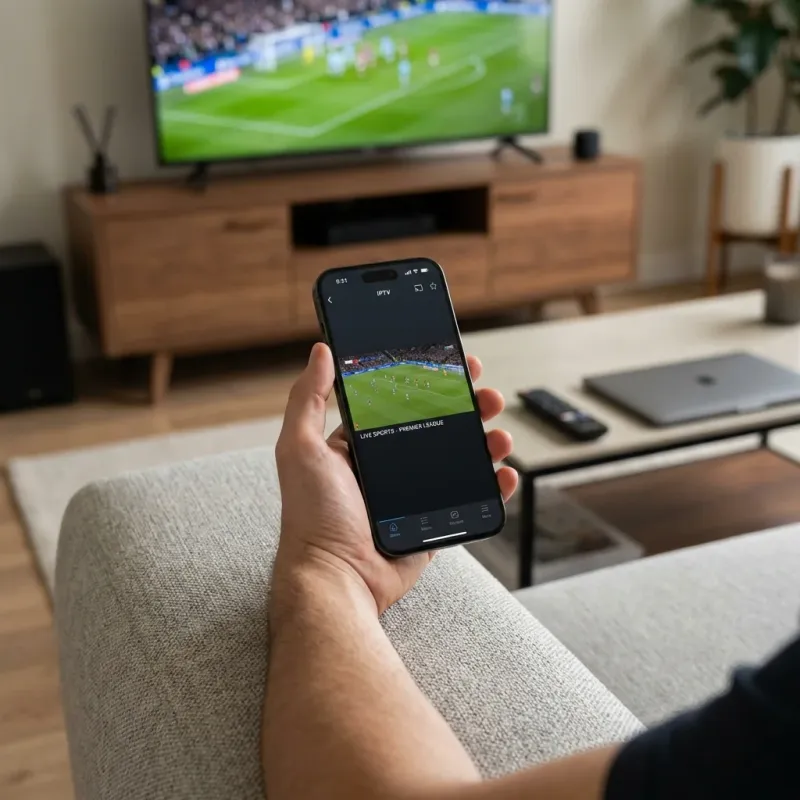
IPTV on iOS: What You Need to Know
Apple's App Store has strict policies, but there are still excellent IPTV apps available for iPhone and iPad. The key is knowing which apps work and how to set them up. Compatible devices: • iPhone 7 and newer (iOS 14+) • All iPad models with iPadOS 14+ • Watch on the go or cast to your TV The main difference from Android: Most iOS IPTV apps are paid (typically $5-10). Free alternatives are limited but available.
Best IPTV Apps for iPhone & iPad
GSE Smart IPTV
Most Popular iOS IPTV App
- Native iOS experience
- Support for Xtream Codes & M3U
- Built-in EPG (TV Guide)
- AirPlay to Apple TV
- Picture-in-picture mode
- External player support
IPTVX
Best Interface
- Netflix-style interface
- Beautiful channel grid
- Favorites & history
- EPG with logos
- Optimized for all screen sizes
IPTV Smarters Player
Same Experience as Android
- Familiar Smarters interface
- Xtream Codes API support
- Multi-user profiles
- Parental controls
- Works cross-platform
VLC for iOS
Best Free Option
- 100% free
- Open source
- Plays M3U playlists
- No EPG support
- Basic but reliable
Setup Guide: GSE Smart IPTV
The most versatile iOS IPTV app. One-time $6.99 purchase, no subscription.
Purchase & Download
Open the App Store and search for GSE Smart IPTV. Purchase and install ($6.99).
💡 The app is a one-time purchase - no monthly fees from the app itself.
Open & Allow Permissions
Open GSE Smart IPTV. Allow network access when prompted.
Add Remote Playlist
Tap the hamburger menu (☰) > Remote Playlists > tap the + icon
Add via Xtream Codes API
Select Add Xtream-Codes API and enter:
- Name: LUNOTV (or any name)
- Server URL: Your server URL from email
- Username: Your IPTV username
- Password: Your IPTV password
Save & Load
Tap Add and your channels will load. Tap your playlist name to browse channels.
💡 First load takes 30-60 seconds. EPG data loads separately.
Alternative: Using M3U URL
If Xtream Codes doesn't work, you can use your M3U playlist URL instead.
- 1. In GSE Smart IPTV, go to Remote Playlists
- 2. Tap + and select Add M3U URL
- 3. Paste your M3U playlist URL from your welcome email
- 4. Enter a name and tap Add
- 5. Wait for the playlist to download and parse (may take 1-2 minutes for large lists)
📝 M3U files are larger and take longer to load initially, but work on all apps.
AirPlay: Watch on Your TV
Cast IPTV from your iPhone/iPad to any Apple TV or AirPlay-compatible TV.
- 1. Make sure your iPhone and Apple TV/Smart TV are on the same WiFi network
- 2. Open your IPTV app and start playing a channel
- 3. Swipe down to open Control Center (top-right on newer iPhones)
- 4. Tap the Screen Mirroring icon
- 5. Select your Apple TV or AirPlay TV
- 6. Your IPTV content now plays on your TV!
💡 For the best experience, use an Apple TV directly instead of AirPlay. See our Apple TV setup guide.
iOS IPTV Tips
Battery Optimization
IPTV uses significant battery. Keep your device plugged in for long viewing sessions or use Low Power Mode for SD streaming.
Use WiFi When Possible
IPTV uses 1-2GB per hour. On mobile data, this can drain your plan quickly. Prefer WiFi for HD/4K content.
Picture-in-Picture Mode
Most iOS IPTV apps support PiP. Swipe up while watching to minimize the video and multitask on your iPhone.
Download for Offline
Some IPTV apps allow recording or downloading movies for offline viewing. Check app settings.
Troubleshooting iOS IPTV
❓ App keeps crashing
✅ Force close the app and reopen. If issues persist, delete and reinstall. Make sure iOS is updated to the latest version.
❓ Playlist won't load
✅ Check your internet connection. Try switching between WiFi and cellular. Verify your M3U URL or credentials are correct.
❓ Video plays but no sound
✅ Check that your iPhone isn't on silent mode (flip the switch on the side). Also check in-app volume controls.
❓ AirPlay disconnects or lags
✅ Move closer to your WiFi router. Restart both your iPhone and Apple TV. Try using a wired Ethernet connection on your Apple TV.
Frequently Asked Questions
Do I need to jailbreak my iPhone?
No! All the apps listed are available directly from the official App Store. No jailbreaking required.
Why are iOS IPTV apps paid?
Apple takes 30% of app revenue and has strict guidelines. Most developers charge a one-time fee to cover costs. The $5-10 investment is worth it for a quality experience.
Can I use the same subscription on iPhone and other devices?
Yes! Your LUNOTV subscription works on all devices. You can watch on your iPhone and Firestick with the same credentials, just limited to your plan's simultaneous streams.
Which app works best for iPhone?
GSE Smart IPTV is the most popular and feature-rich. IPTVX has the best interface. For familiar experience across devices, use IPTV Smarters.